mIRC

How to install mIRC.
Instructions for Net
Newbies and Download Dummies.
These terminally simple instructions assume you know nada,
nothing,
njente about computers. We not only assume that you
know nothing, but we assume that knowing nothing is making you
nervous... Right?
No worries, we will help you with Downloading, Installing and the
Setup of mIRC.
If you made it this far you will certainly manage to get and
install mIRC on your PC, if not today then tomorrow!
On this page we hope to clarify downloading mIRC (and files in
general) from the Internet to your PC and we will introduce you
to installing and setting up the program in Windows.
Just read on and follow the instructions..... dare to dive into
it head forward !
It might be a good idea to print
this page!
If you have difficulties reading this English text, one of the translations
might help?
STEP ONE: Download the
proper mIRC 5.7 cabinet.
mIRC is distributed in a self-extracting
cabinets that will install mIRC on your PC. You dont need any
external programs to
install and setup mIRC on your PC, just follow the instructions
below.
You first have to find out what mIRC issue you will be running.
mIRC is available is a 16 bit issue (mirc57s.exe) and a 32
bit
issue (mirc57t.exe). The 16 bit issue is meant for older (16
bit) Operating Systems like Windows 3.1 or 3.11. The 32
bit
issue is meant for 32 bit Operating Systems like Windows95,
Windows98, Windows2000 or NT.
Determine which issue you will be using.
If you have windows 3.1 or 3.11, go on
installing the 16 bit issue.
If you have win3.11 with the win32s package, go on installing the
32 bit issue.
If you have windows 95 with an old 16 bit winsock like Netcruiser,
or the old 16 bit Trumpet winsock, go on installing
the 16 bit issue! (-not- the 32 bit issue)
If you have a normal windows 95, 98, 2000 or NT, go on installing
the 32 bit issue of mIRC 5.7.
If you are in any way uncertain about the proper choice, you
could decide to install the 16 bit mIRC issue ! That
version will always work! We will go on showing the installation
of the (most common) 32 bit mIRC. The
installation of the 16 bit issue only differs a little in the
names of the files.
Now you're ready to download the appropriate mirc 5.7 cabinet from one of the addresses on the list of download sites and save it to your hard disk.
The cabinet with the 16 bit issue is
named: mirc57s.exe
The cabinet with the 32 bit issue is named: mirc57t.exe
To download a file and save it to your harddisk instead of viewing it, click on the link to the file while holding the SHIFT key on your keyboard down. In several web-browsers (Netscape, Mosaic) you can also right-click on the link and select 'Save this link as...' from the popup menu that will show. When your web-browser asks where to place the file, select a directory on your harddisk where you can find it back later.
Sometimes your web-browser will
confront you with a warning message like :
"Unknown File-type. No external viewer configured
for this file.
Do you want to configure a viewer now OR save file to
disk ?"
In these cases select "Save file to disk".
STEP TWO: Installing mIRC
Once you have downloaded a mIRC cabinet,
you are ready to install mIRC in windows. During the
install procedure
mIRC's files will be automatically extracted from the
cabinet and all necessary steps for starting mIRC will be
taken. If
you're upgrading an older version of mIRC you will be
able to keep all your old settings.
Open the Windows File Manager or
Explorer with which you can see what files are
found on your PC's hardisk
. You can find its icon in the Main group in
Windows or under the 'Start' button, under 'Programs'.
Locate the mirc 5.7 cabinet
which you just downloaded and saved to your harddisk. It
is either named mirc57s.exe
(16 Bit) or mirc57t.exe (32 Bit)
To start the installation process just
double click on the cabinet. The installation program
will be started automatically.
Determine the place on your
harddisk where you want mIRC to be installed.
Normally the proposed c:\mirc will
do fine. Upgraders just browse to the directory
where their current mIRC version is found and
select that as
destination directory.
If you want the installer to keep backup copies
of all eventual older files, keep the "Make
backups" option
selected.
If you want the installer to add a mIRC program
group to windows and set up the mIRC icons, keep
the "Add
icons" option selected.
Select 'OK' and you're done! The
installer will take care of all the work.
STEP THREE:
Setting up mIRC
Now that mIRC is installed on your PC and the program
group and mIRC icon are available in the program manager,
this is what is required to set it up:
First make sure you have an active connection to Internet.
Normally you just have to start up the modem connection
to
your Internet provider to do so. To anticipate any
problems in the future always first start your modem and
then mIRC.
Double click the

icon (shortcut) to start up mIRC.
mIRC will start and show the Options Dialog and
require you to fill in some information:
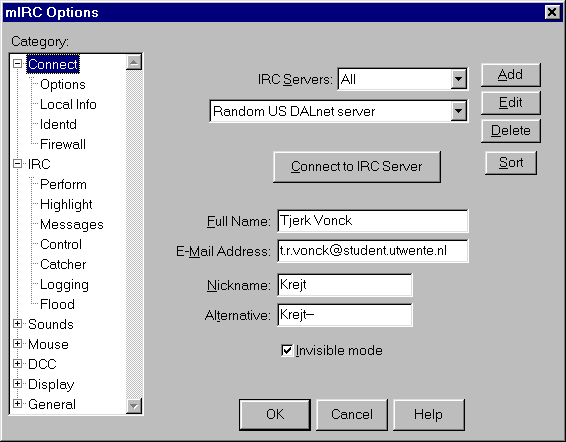
In the mIRC Options dialog (as above) you see an options tree structure. You can expand a branch of the tree (a Category) by selecting an item (Connect, IRC, Sounds,..) and clicking on the little 'plus' sign. A list of sub-items will unfold. At first only the main 'Connect' menu item seen above, has to be filled in. Select this item and enter the following information in the fields;
Real Name: Your real name (ie,
Tjerk Vonck)
E-Mail: Your email address (ie, [email protected])
Nick Name: A one to nine character alias to use
on the chat system (ie, Krejt)
Alternate: If someone else is already using the
Nick Name you you've chosen on IRC, you will be
known by this alternate name instead. (ie, Krejt2)
You also have to select a local or nearby IRC server. A long list of servers is available by default. Just select one. At first the default Random US DALnet server will do fine!
Next, you could select the Local Info sub-item. Normally you dont have to fill in anything here. Just make sure the boxes under 'On Connect, Always get :' Local Host and IP Address are Checked (selected). For various Internet Providers and PC setup's you might need other settings here. Dont worry too much for now, if you get problems later just read the help provided on this topic in the mIRC Help file (mirc.hlp) or mIRC FAQ.
Now select the Identd sub-item and Enable the Identd Server. Your User ID should already be filled-in there. Eventually fill in your Account Name in this field. (Your account name is the part before the @ in your email address, like t.r.vonck in my case) The System should allways be set to UNIX and the port is always port 113. 'Show Ident requests' can be left Off, 'Enable only when connecting' can be set On.
Once this is all set, click on the OK button to close the mIRC Options Dialog.
mIRC is now set up and totally ready to use.
STEP FOUR: Using mIRC
Click on the File menu
and select Connect. Or select the
lightning button in the Toolbar for the same
effect.
After a short wait (up to 20 seconds) you will see some meaningless blurb appear in the status window.
The last line will say something like "End of MOTD command".
You are on IRC now !! Congratulations.
The mIRC Channels Folder will pop up. It shows a selection of the most popular IRC Channels available all over the world. You might want to try some of them? You can double-click on any channel suggested in the list. Or you can select more channels and hit the Join button.
Alternatively, to join a conversation, type the /join {channel_name} command in the single line box at the bottom of the Status window. Popular channels are #42plus, #friendly, #mirc, #teen, #texas, #amsterdam, #newbies, #help, #england, #usa, well there are thousands. To get a listing of all available channels you might try the /list command.
When you join a channel,
a new window will appear on your screen.
The names on the right side column are those
people who are currently joined in the channel.
The left hand window is where everyone's
conversation takes place.
To say things to the people joined to the channel,
just type your comments in the single row box at
the bottom of the channel's window.
To leave a channel, just double click on the close box, which is located at the top-left hand corner of the channel name's window.
There are many more commands available on IRC, and we recommend you do some further reading in one of the widely available info files. These www pages offer an IRC Intro page in case you need more info on IRC, and the mIRC FAQ (Frequently Asked Questions) to help you solve any possible problem you might encounter now or in the future.
If you have difficulties
connecting to an IRC server, because of
errors like "No Authorisation" or
"Cannot Resolve IRC Server name" try
using a different IRC server or read the mIRC FAQ
for more info.
![]()
![]()
![]()
