This tutorial is very graphic intense, so please be patient with the loading.
This tutorial is very graphic intense, so please be patient with the loading.
| There are several
ways to add music to your pages. Below you will find several examples to
help you do this and hopefully understand the process a little better.
The code on this page is specific to Internet Explorer and Netscape only.
Be sure to add only the code in red to your pages. Copy direct from this
page instead of from my source code, since that is set up for my directories
and files and will not work for you. The code should be added anywhere
between the body tag.<Body></Body>
The code to add
music for Internet Explorer is as follows:
Also make sure
to substitute the path and name of your midi file with your own.
The code to add music for Netscape can be any combination of the following: Adding the following CODE will give you a SMALL CONSOLE. <embed img src="mid1.mid" width="144" height="15" controls="smallconsole" autostart="true" autoload="true" loop="3"></embed>
Remember that
for every tag you open, you must have a closing tag such as <Embed></Embed>
The loop tag will make the music repeat as many times as you have specified by the number in this tag. loop="3" will repeat 3 times and then quit. If you don't included this statement it will play once and then quit. A similar tag
is the repeat="true"
which causes the file to loop until the "Stop" button on the console
is pressed.
If you want to
enable your visitors to choose their own music, or not have any music at
all you might consider adding.
SAVING YOUR
MIDI FILES:
Complications
could arise:
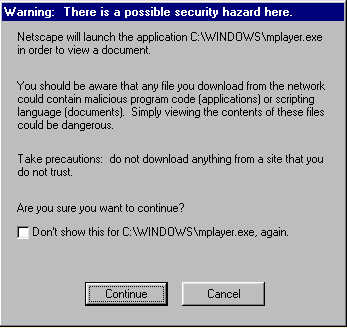
While in this
case this is a harmless warning, I must admit the first time I saw it I
did tend to panic a bit. Once I read the warning carefully and realized
what it was trying to do. I hit the continue button and was presented with
Even though this did work, it was not what I wanted to present my visitors with. I know HTML and went over my code what seemed like 5000 times and knew logically that the code and the way I had constructed my page should work. I knew that everything was fine on my end so it had to be something missing on the computer I had published my pages to. As a next step to solve my problem I used all the major search engines to search for any mention of midi, embed, and Netscape. Though this was a long and tedious process, it finally paid off when I started coming up with pleas for help from others with similar problems. Some were simple answers like things missing in their midi commands. such as forgetting to add the autostart to their code, but some stated problems with the Mime. What is Mime you may ask it stands for (Multi-purpose Internet Mail Extensions), however every document transmitted on the web has it's own mime type. This includes a header sent by the server that tells your browser what kind of data is being sent. The format is type/sub-type. For any plug-in to function, with Netscape Navigator it requires that the correct MIME type be sent by the server. If your not sure
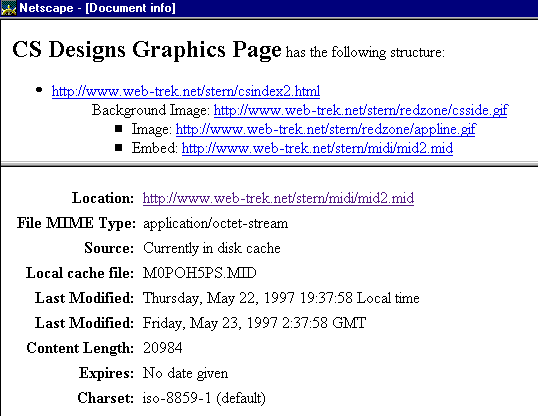
what Mime Type your server is sending out, go to the View menu on Netscape
then select Document Info you will be presented with a page similar to
the one below. It contains all the information about the particular web
page your viewing. You must access the page from the net as no MIME types
are sent when you view pages on your own computer. This is why the page
works correctly on your computer but may not on the web. Double click on
the file you wish the information on and it will appear on the lower half
of the page.
The reason my sound didn't work in Netscape was that it was expecting File MIME Type:audio/x-midi and it was receiving File MIME Type: application/octet-stream. Here is the correct information for the audio plugin installed in Netscape: LiveAudio File name: C:\PROGRAM
FILES\NETSCAPE\NAVIGATOR\PROGRAM\plugins\NPAUDIO.DLL
In order to get sound to play on your site, your server has to be willing to help you. There are sites that have this problem and I hope this tutorial will set your mind at ease and you will accept and listen to the music they have to offer. Important Notice! Before you use music on your web pages, it is important to note that many music selections are copyrighted, by the original composers. You should make sure that you comply with the terms for using their music by going to the their sites, and reading their copyright notices. This is a very small courtesy for the pleasure their wonderful music brings us. |
All music on
this page is Courtesy of
Bill's
Original Midi (No Frames) Frames/Jukebox
Entrance.
Selection playing
on this page is "Bad Bad Boys".
One of Bill's
selections is also playing on my main CS Designs page.
Please do not
copy the music from my site.
If you would
like to listen to more of Bill's music,
please visit
his site by clicking on the link above.
More Original
Music used throughout my site can be found at:
Original
MIDI Compositions by Bruce DeBoer
Tom
Wagner's Music Library
The
Music of John Rhyman
Press the back
button to go back to the page you just came from.
Note! you must
have Java enabled to use the button.
If you do not
have Java enabled, hit the backbutton of your browser.
CS Designs © Copyright All Rights Reserved January 1997