|
.
. Hello Everyone! Over the weekend I was going to back up all my tubes to a CD.... well, I have so many, (way over 20,000), I couldn't put them all one just one and I didn't want to run to town to get more so I decided to go and find ways I could cut down on the space my tubes would take up and I thought I would share these with you=o)
2 WAYS TO CUT DOWN ON SPACE: First I should tell you I am working on the tubes I have NOT exported in to my tube folder! The only time I export a tube is when I make it and have to for the name sake. If you work on tubes you have exported, the you will need to know how to clean your tube.clt file for this first part, if you need a tut on how to do that just email me and I will send you one. OK, now with that said: I went in my tube folder and checked my folders to see if I had doubles with different names, sure enough I ended up deleting over 300 tubes that were dubs same tubes just different names......... I am sure I have more with so many of us making tubes now and everyone giving their tube a different name..... the way I went about doing this is I made a new folder and named it New then went in and took about half of the tubes out of the folder I was working on and opened psp 5 and 6. I opened my old folder in 5 and new in 6, when I came across one in 6 that was in 5 I would delete out of 6 then left the one in 5=o). If you do not have both psp 5 and psp 6 you can do this with just eyeing the folder. This did not free up enough space for me so I had to do something else, (which I am still working on, I think it would have been easier to just go get another CD lol). Note: You do not have to spend a lot of time doing this at once, if your not pressed for space you can just do this as you come across one. I started looking in my folders and when I would see one that looked kinda far off, (see below, the one with my screen name on it)?
See how far it looks compared to the rest? I would click on it and bring it in my work area.......
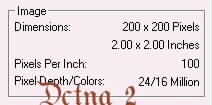
Once I had it opened I went to view> image information and looked at the size of the image...
*note* you do not have to do this every time, it is just for this tut to show you how much space you will be saving!
now I go to my crop tool now double click on it and this is what you have now:
now go back to view> image information and look at the size of the image ...
see the difference in the size?? now go to the little
x .
Copyright � 2000 by Dctna2, all rights reserved
This site is sponsored and maintained in its entirety by Artists4psp Copyright � 1998-2001 by Artists4PSP, all rights reserved Artists4PSP Home Page | Join our Group | Contact: LdyArchrr
|


 and
place a line just on the outside of the tube:
and
place a line just on the outside of the tube:


 on the tube and x it
off, another box will come up and ask you if you want to save the
changes to the tube click on yes and you just saved almost 1\2 of the
space you were using=o) some of the one's I have done have saved way
over half=o) now sometimes a box will come up and want you to save this
in psp format, that is OK just click OK and then go in and delete the
one you was working on.....Note: if you are working in your exported
tube at this time and it tries to save it psp format you will need to
have an extra folder and force the psp to save in that folder and then
open up that folder and re-export it making sure you give it the same
name and psp will write over the old one and your resized one will be
there=o)
on the tube and x it
off, another box will come up and ask you if you want to save the
changes to the tube click on yes and you just saved almost 1\2 of the
space you were using=o) some of the one's I have done have saved way
over half=o) now sometimes a box will come up and want you to save this
in psp format, that is OK just click OK and then go in and delete the
one you was working on.....Note: if you are working in your exported
tube at this time and it tries to save it psp format you will need to
have an extra folder and force the psp to save in that folder and then
open up that folder and re-export it making sure you give it the same
name and psp will write over the old one and your resized one will be
there=o)
