|
How To Color B&W's Created by: Cybrsextoy . . Okay gang...I've had so many requests on how I have been painting these black and white images that I thought I would give a shot at writing a tutorial.. so here we go...consider the source here LOL first off..this is for psp5...haven't tried it in psp6 yet so grab those coffee mugs...let the critters out...pull the phone jack out of the wall.. and tell the neighbors to take a flying leap..cuz We're PSP'n!!! . first off....bring up a black and white image.. make sure it is like 16 kajillion colors or whatever it is here's the one I used for this
reminds me of when I was a kid and got caught terrorizing the neighbors cat LOL anyways...there's the pic you can use first thing you have to do is add a new layer
then you have to change the properties of it.. you can do this after clicking on NEW..this window comes up
change it to COLOR like the little finger says click on OK..I have read some other tutorials on this part right here..and some say to leave it NORMAL..do all your painting...then go and change it to color...but by doing the way I am describing here..you see EXACTLY what your finished image will look like...you decide okie dokie...now we have our image...with a new layer over it...invisible layer even...kewl huh... okay ...UR DONE...LOL...I'm kiddinggggggggg okay..what's next....oh yeah...click on your little
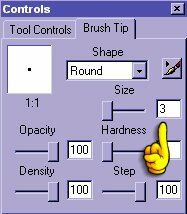
spray can thingy then click on your tool palette
this you can play with...if you have large areas to paint..then use a larger tip..for the little nooks and crannies...use a smaller tip...kinda like if ur tuning a car...ur not gonna use a sledgehammer...although some times i have..but needless to say..the results were not effective...LOL okay..you are set to paint... almost this is much easier if you zoom in on your image
now you have a nice big fuzzy picture to work with lol
don't worry about the fuzzies...when you are done you will go back to NORMAL VIEWING and it will look maaaaahhhhhhhhvelis okay...you should be able to start painting your image... what you see is what you get...use your colors..your imagination...and most of all HAVE FUNNNNNNNNNN any questions ...feel free to write or IM...if Idon't answer... that means I am either knee-deep in psp or trying to fix the car...LOL I'm not gonna show you mine..cuz then you would just copy it..lol... so this is one of those tutorials that MAKES you use your imagination... oh..ps...if anyone knows how to get the little airbrush cursors and other tool cursors in the images...can you send me info on how to do that..I used Printkey to make this one and it takes the pictures of the tool cursors out..as you can see by the image of the painting of the ribbon on his hat up there...the little square is there..but the image of the airbrush is kapoot..any help on that would be appreciated...thanks marc and in case you were wondering.....YES..I wrote this turorial..who else could write something this messed up and get away with it...and if you wanna share it go right ahead..don't worry about putting my name on it..I don't get all that worried about it..the joy in it for me is if you guys like it..so have at it
Copyright � 2000 by Cybrsextoy, all rights reserved Mark aka Cybrsextoy I indeed did write that goofy tutorial on colorizing
black and white images....and you are welcome to use it. This site is sponsored and maintained in its entirety by Artists4psp Copyright � 1998-2001 by Artists4PSP, all rights reserved Artists4PSP Home Page | Join our Group | Contact: LdyArchrr
|


 to
adjust the brush tip size to a smaller one
to
adjust the brush tip size to a smaller one