MacOS Tips









MacOS Tips
|
Keyboard Shortcuts Speeding Up With Keyboard Commands Is your mouse hand getting a little tired from going in circles all day long? Or maybe you're a little slow with the trackpad on your new Powerbook. Wouldn't it be nice to use both of your hands in a reasonable matter? Well, you can! Your Mac has the ability to do most of your normal tasks using only your keyboard. Learning your keyboard commands may take a little time at first, but you'll gain back that time and more later on. Touch typists will find this particularly easy to learn, but even hunt-and-peckers will find themselves faster on the keyboard then with the mouse surprisingly quickly.
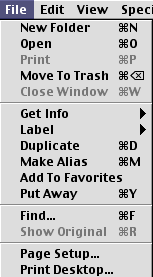
If you take a look at the image of the file menu in the Finder,
you'll see to the right of the item "New Folder". If you
hold down the Command key ( A good way to learn the standard keystrokes is to use them whenever you see a keystroke alternative on a menu. Before you know it, your fingers will be typing them automatically. Below are some of the most common keyboard shortcuts:
Common Application Commands
Useful Finder Commands
Courtesy of MacTips (http://www.mac-tips.com) |
|||||||||||||||||||||||||||||||||||||||||||||||||
|
|
 )
and press the letter N, the Finder will create a new folder in the
selected window or, if there isn't a window currently selected, on
the desktop. You'll find the same key combinations in most
applications: one of the many things that Apple did right was to set
standards for things like this right from the beginning. Some
applications even let you create your own keystroke combinations.
)
and press the letter N, the Finder will create a new folder in the
selected window or, if there isn't a window currently selected, on
the desktop. You'll find the same key combinations in most
applications: one of the many things that Apple did right was to set
standards for things like this right from the beginning. Some
applications even let you create your own keystroke combinations.


