|
|

|
|
|
|
|
Into ASP |
Page 1 |
|
What is
ASP? ASP is an acronym for Active Server Pages. ASP was first introduced in Microsoft Internet Information Server 2.0, the company's NT-based combination Internet and Network server. It is an extremely powerful server side scripting environment. Probably the most useful application of Active Server Pages is as a link to a database. ASP sits between the Web server and a database such as Access or SQL Server. Data requested by ASP can then be used to create Web pages "on the fly". In other words, a database-driven Web site may only need a few actual Web pages, However, the content and appearance of those pages is only limited by the size of the database. |
|
|
What do I need? You do not need a fancy server running NT or Windows 2000 Server in order to experiment with ASP. Hidden away on the Windows 98 CD you will find an application named Microsoft Personal Web Server. Personal Web Server (known as PWS from here on) is a great little application that enables you to run server side scripts on your own PC. In fact, if you have a small network at home, maybe connecting the kids PC's with your own, you could use PWS to run a small Intranet. |
|
|
Installing PWS
|
|
|
|
|
| 5. Click the "Custom" button in the configuration menu (fig 2). | |
|
|
|
|
6. Double Click
on "Microsoft Data Access Components" (fig 3) and in the
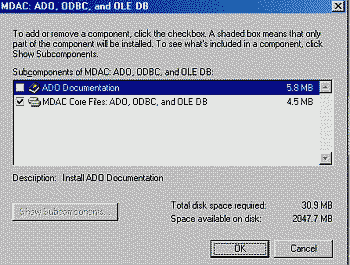
active window on MDAC: ADO, ODBC, and OLE DB (fig 4). Then check the ADO documentation to be installed (fig5). |
|
|
|
|
|
|
|
|
|
|
|
7. Click OK to
close the window and OK in the second window to close it as well.
We recommended installing the ADO documentation because you will need it for developing data driven web pages. 8. Double click PWS (fig 6) and then double click Documentation and Checkmark Active Server Pages in the window that appears (fig7). |
|
|
|
|
|
|
|
|
9. Close the
two windows by clicking OK. 10. Click "NEXT" in the PWS Setup Window. 11. Notice the default Web publishing home directory, x:\Inetpub\wwwroot where"X" is a drive letter. Click Next to accept the default (fig 8). |
|
|
|
|
|
12. Leave the
MTS (Microsoft Transaction Server) install folder to it's default
value and click the Next button (fig 9). |
|
|
|
|
|
13. The PWS set
up will now complete the installation. When it is finished, click
on the Finish button. 14. Restart your computer
Those of you
who are still running Windows 95 can install PWS from the NT 4.0
option pack which is |
|
|
|

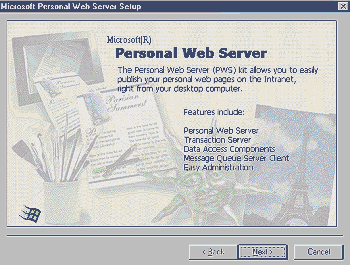 Fig
1
Fig
1
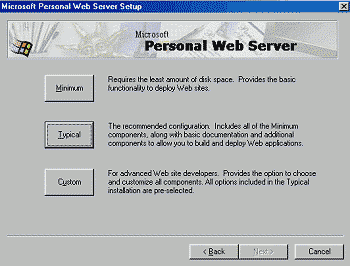 Fig 2
Fig 2
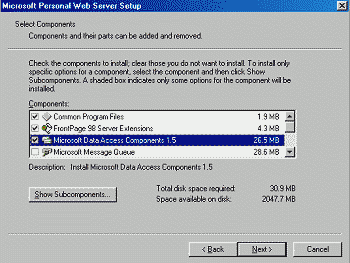 Fig 3
Fig 3
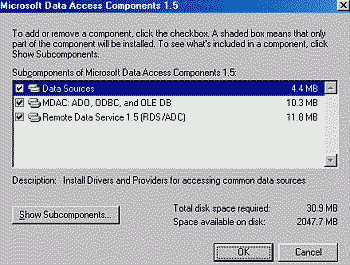 Fig
4
Fig
4
 Fig
5
Fig
5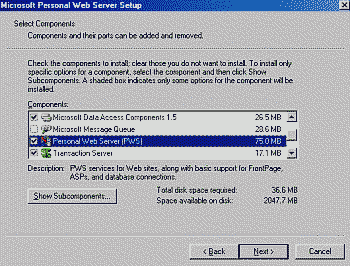 Fig
6
Fig
6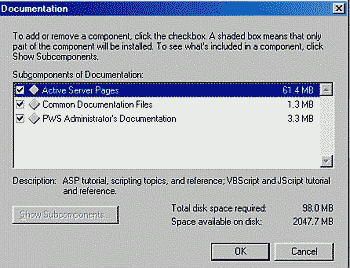 Fig
7
Fig
7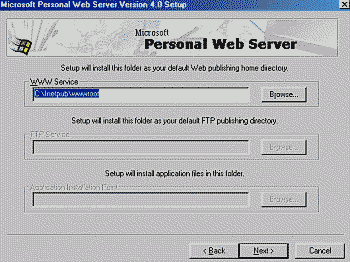 Fig
8
Fig
8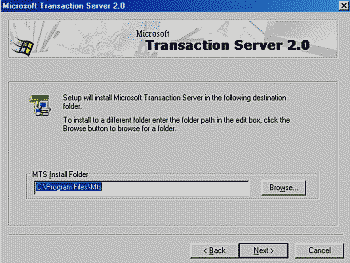 Fig
9
Fig
9