Using a signature
file involves three easy steps.
1. Create a small
html script referencing the name, full path and size
of your graphic as well as your email address.
2. Add this script to
Outlook Express as a signature file.
3. Add the signature
to your email or stationery post.
Create a folder to
keep your signature graphics and html scripts together.
Let's call it Signatures. (C:\Signatures) In this folder, we will
store all of our graphics and html scripts used in our signature
files. (It is going to
be necessary in this case to use the full path to the graphic,
even though the graphics and html scripts are stored together. OE
requires the full path when inserting a signature file.)
Step One:
Creating your html script
Here's a
look at three different styles of signature files. Choose the
style you like, copy the html script and paste it into Notepad.
Enter
the name and full path of your graphic.
Enter
the height and width of your graphic.
Enter
your email address where shown.
This script
is a graphic with embedded address. (It will have an "E-mail"
mouseover in your stationery)

This script is a graphic
with your email address below. In this case, your email address
is visible. (You can adjust the centering of your graphic over
your email address by adjusting the hspace=value)

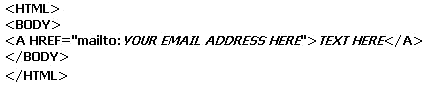
This script
creates a text only email link. You can put any word you want in
the TEXT HERE section,
including your email address.
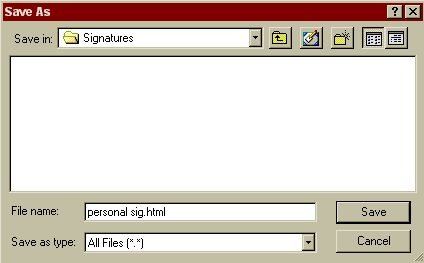
Click
File|Save and save the file with a (.htm) or (.html) extension,
such as personal sig.html. Save to your Signatures folder.
Step Two.
Add this script to Outlook Express as a signature file
Go to
Tools|Options and select the "Signatures" tab. Click
the "New" Button Click the "Rename" button and
give your signature a descriptive name Choose the "File" option
and click "Browse" to your C:\Signatures folder.
When "Open" dialog
box appears change the files of type to "HTML Files"
and browse to the personal sig.html file that you created.
Click "Open" and
then "Apply".
If you add more than one
signature you can set the default by clicking on the signature in
the signature list and clicking the "Set As Default"
button.
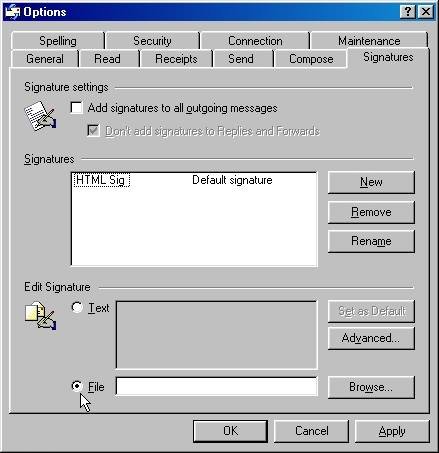
You can also
assign signatures for specific e-mail or newsgroup accounts by
clicking on the "Advanced" tab.
Step
Three: Add the signature to your email or stationery post
Open a
composition window as if you were going to type a message.
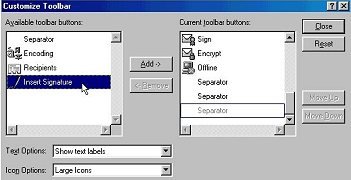
Right-click an empty spot on the toolbar and choose "Customize"
from the pop-up menu.
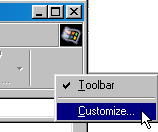
Click on the
Signature entry in the dialog box and click "Add".
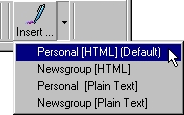
You will now have a signature button on your toolbar for quick
access. Clicking on this button will insert the default e-mail
signature into your e-mail message or you can use the drop down
menu to choose a different signature.