|
|
 |
|
What About Spam?
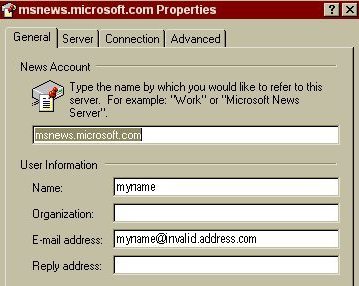
Spam is unwanted, electronic junk mail. Automated programs called spam bots can harvest your E-mail address directly from your post. They can harvest your Reply address in the same way (they can even pick embedded addresses from the body of messages and from signature files). If you experience problems with spam, it is possible to anti-spam your E-mail address for your news accounts. Here's a look at two ways to avoid spam. Unfortunately, both involve creating a false E-mail address (meaning the Reply button no longer links to your real address). The key to unlocking your real address is given within the post as a signature file. The first step is to set up your news account with a false E-mail address. Go to Tools|Accounts|News. Select your news account and click Properties. Enter a false address in the E-mail address field. (note: the server address should be false as well to avoid a real server the trouble of bouncing your email, so anti-spam the address after the @ sign)
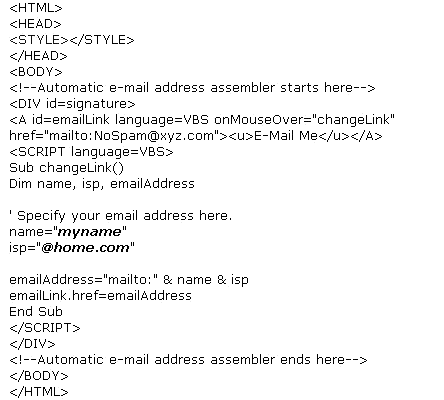
Method One: The following HTML script was created by Bill Scott. It hides your E-mail address in the body of the post until you "mouseover" it. No web bot can extract it from a post. Your E-mail address doesn't exist, except in pieces, until the post receiver "mouses over" the "E-Mail Me" link. It is only then that the address is assembled for the link. When the link is clicked, OE is launched with the proper "mailto:" link. A web bot will not be able to detect it because it never exists.
Insert your E-mail address in the name and ISP sections where indicated. (For additional information on modifying, saving and using an html script as a signature file, see "How Do I Create A Signature File?")
Method Two: Another approach is to include something extra in your false E-mail address which must be manually removed, so that human readers know what to do. For example, set your false E-mail address to something like.... myname @spamfreehome.com.
Create a text signature file which says remove "spamfree" to reply. To do this, go to Tools|Options|Signatures|New. Select Text and type in your message. Set as Default|Apply|OK.
You may choose to add
the text signature file automatically or insert it manually.
(For additional information see steps 2 & 3 of "How Do I
Create A Signature File?") |
||