DOS, troubleshooters approach
 
HOME


Why DOS
if you are wondering why we are bothering with DOS when there are so many advancements in computer operating systems, then you are missing the point of troubleshooting. Ask yourself this, what should happen if my hard disk fails to boot up, probably gives you something like invalid system disk" OR after the usual phase "verifying DMI pool data... " it freezes? Of course you will need to start your computer with a start up disk and it will help allot if you understand a bit of DOS, even if it is only the basics. So lets get on with it.


Brief history
The Disk Operating System (DOS) was developed by IBM and Microsoft
for the original IBM PC computers. DOS has grown along with the advancement of computers and even today, not only is it integrated, it also plays major role in even the most recent Microsoft's operating

system i.e. Windows Millennium Edition.


The command prompt
it is commonly c:\> with the earlier versions of DOS. However more
recently it takes to the directory in which you installed your windows
files such that it is in the form c:\windows> or the path and directory
windows was installed should you have made a custom installation and

specified a particular directory. This is called the default directory i.e. the directory that DOS accesses if you reference that drive but don't specify which directory to use.


Viewing contents of a directory

A directory is what you commonly know as folders in windows. A directory contains file names, theirs extensions, file size, date last modified , time last modified, starting location of the file on the disk and the attributes. To view the contents of a directory, use the dir command. What you get is a listing such as this one:
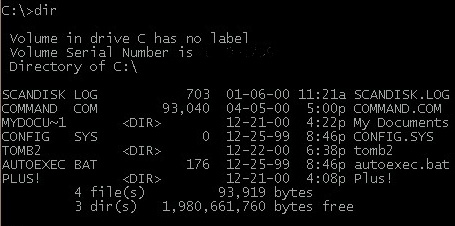
EXAMPLE (dir COMMAND)

From the above, all the files with the <DIR> beside them are directories.

Changing directories
To change directories, you use the cd command, followed by the name of the directory you want to change to. E.g. from above to change to the plus! directory your command will look something like this c:\>CD plus!. Your prompt after pressing enter key will look like this c:\plus!> To go back to the root directory you will type CD or CD\

Every disk must have at least one directory, called the root directory. A sub-directory will be more lie a folder within a folder.


Filespecs

File names are usually restricted to a maximum of 8 characters with an extension of up to three letters. To access a specific file, you do so using its filespec. Most of the time you access one file at a time, however you can process a whole group of related files. This can be done using the global filespec. a global filespec contains wildcard characters that stand for other characters. The used wildcard characters are the (*) and (?). The * represents all characters within the filespec as specified e.g.

- copy *.txt will copy all files with extension of .txt from the root directory(the directory you are presently located), to the place you specify.

- del *.* will erase all files within the root directory you are located. Take note that only files which have no read only, system or hidden attributes are not deleted. Any directories are left intact.

The ? wildcard represents any character that is where the ? is used. This means that one ? is one character unlike one * which is all the characters... e.g.

- dir cool??.e?? will show a list of all files from the root directory that contain 6 characters, the first four characters being cool the other two could be anything and the extension will have to start with the letter 'e' regardless of the other letters. The following files would qualify cooles.ebc, cooler.exe, cooldr.ehl.


WINDOWS OPERATING SYSTEMS
  
      Windows 95
    
 Windows 98
    
 Tips and tricks
    
 Advanced windows
    
Ask Questions
    
 Microsoft site


HARDWARE

     Fault detection
     Basics
     Advanced stuff
     Related links


feedback: [email protected]
copyright© 2001

