| Windows
95 |
| |
|
|
|
| |
System
files
To
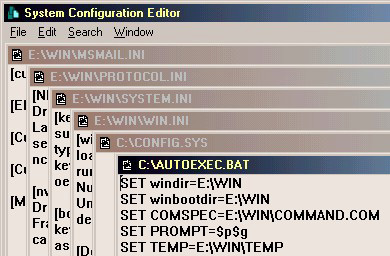
open any of the System files for editing,
use the windows utility called SYSEDIT.
Click the Start button and select the Run
menu option. Within the Run dialog box, type
SYSEDIT then click the OK button. Windows
will launch the SysEdit tool which, in turn,
will open the CONFIG.SYS,AUTOEXEC.BAT, WIN.INI,
SYSTEM.INI and other .INI files depending
on your PC configuration. Note: Entries is
these files are not case-sensitive. An example
is shown below:-
|
|
|
Autoexec.bat
AUTOEXEC.BAT
loads Terminate-and-Stay-Resident programs
or TSRs, some drivers and installable file
systems (such as MSCDEX for your CD-ROM drive),
but its primary purpose was the ability to
run applications during the boot process.
There are still applications that use this
file to load pieces of its software before
Windows starts. For example, anti-virus applications
use AUTOEXEC.BAT to scan the operating system
before Windows has the chance to load and
gives a potential virus the opportunity to
attack.
If
you have a lot programs that are loading from
AUTOEXEC.BAT, you may experience slow startups
or even conflicts. Keep entries in this file
to a minimum. Commands There are many commands
that can be executed from AUTOEXEC.BAT, as
well as, programs and batch files. Here's
some that may still help in Windows 9x:
Prompt
This command allows you to change the look
of the DOS prompt.
Temp
The TEMP variable tells applications where
to put any temporary files. Windows 9x stores
temporary files in \WINDOWS\TEMP by default,
and NT uses \TEMP by default. Some applications
don't behave as well and without this command
will dump .TMP files everywhere.
Path
The PATH variable specifies which directories
Windows and MS-DOS should look in when running
an application. For example, if you've created
a batch file to delete directories from your
TEMP directory and saved it to C:\APP\BIN.
You'll have to add the C:\APP\BIN path to
the PATH variable. Then, when you go to a
Command Prompt or use the Start Menu's Run
option, you don't have to type the fully qualified
name of C:\APP\BIN\MYBATCH.BAT. You only have
to type MYBATCH.BAT.
Doskey
A much-needed utility if you use the Command
Prompt frequently. Doskey allows you to use
the Up arrow to reference previously typed
commands.
|
|
| |
Config.sys
Config.sys was mostly used to load device drivers
and setup the MS-DOS environment in the older
Microsoft operating systems. Now, however, the
optimal situation is a CONFIG.SYS that is blank.
That means that you are not loading any old drivers
and don't need to run any MS-DOS commands for
old 16-bit programs. Both drivers and commands
can make Windows 9x run less efficiently.
Device
drivers
Device
drivers are pieces of code that provide a
means for the operating system and, occasionally,
applications themselves to access the system's
hardware. Windows 9x uses primarily 32-bit
protected mode drivers, which load when the
OS itself initializes. Older, 16-bit real
mode drivers can be loaded from CONFIG.SYS.
An example of these programs are CD-ROM and
sound cards drivers. With older hardware is
still necessary to load the drivers from CONFIG.SYS
since they do not have a built-in Windows
9x protected mode driver. These drivers are
referred to as real-mode drivers since they
allow programs to access hardware directly
instead of handing the task over to the OS.
It
easy to spot drivers within CONFIG.SYS since
virtually all commercially available device
drivers have an extension of SYS, COM, EXE
or DEV.
Syntax:
DEVICE={path}\{device driver} /{parameters}
Commands
Almost
all commands in CONFIG.SYS are unnecessary for
Windows 9x. Most commands are used when troubleshooting
DOS applications in Windows 9x. Here are a couple
you might need to know about:
Files:
When you access a file within the MS-DOS environment,
it keeps certain information in memory to be able
to quickly access the file. This information is
called a file handle. During the boot process,
memory is put aside for these file handles so
a limit is placed on the number of files that
can be open at one time. If your MS-DOS program
is complaining that it has too many files open,
bump this number up.
Syntax:
FILES=40
BUFFERS
The
process of disk caching sets aside RAM to keep
a copy of the most recently accessed disk information.
This allows the operating system to access the
memory copy of a file, which is much faster and
more efficient than constantly read and writing
to and from disk. Windows 9x handles all of this
behind the scenes so you shouldn't have to worry
about using this.
Syntax:
BUFFERS=20
|
|
| |
|
| |
Win.ini
This
file used to be one of two important configuration
files for Windows 3.1x. Now, in Windows 9x, the
files are mostly used for backward capability
to 16-bit Windows programs and drivers. This file
comes in an enormous amount of flavors, so here's
just a short list of some important lines that
may help you troubleshoot problems in the newer
operating systems.
Load
This
line is used to load TSRs as Windows starts up.
Windows 9x and NT normally use policies, the Registry
or the Startup folder to do this, however, older
programs may still latch on to this method. Check
out this line if you have a program loading and
you have no idea where Windows is receiving the
load instructions.
Syntax:
LOAD=C:\MYAPP\APP.EXE
RUN - Same as LOAD.
Syntax: RUN=C:\MYAPP\APP.EXE
SYSTEM.INI
This
file used to be one of two important configuration
files for Windows 3.1x. Now, WIN.INI and SYSTEM.INI
are mostly used for backward capability to 16-bit
Windows programs and drivers (although Windows
9x still requires these files to run correctly.
This file also comes in an enormous variety of
flavors, but there is one section to highlight
- the [386Enh] section.
This section loads 32-bit drivers for older applications
and may cause conflicts in the newer operating
systems. If you getting blue screens or general
errors, look in this section for the culprits.
|
|
| |
For
more commands on DOS refer to the command reference
|
|
| |
|
|
|
|
 |
|