|
courtesy of CS Designs
The Border |
|
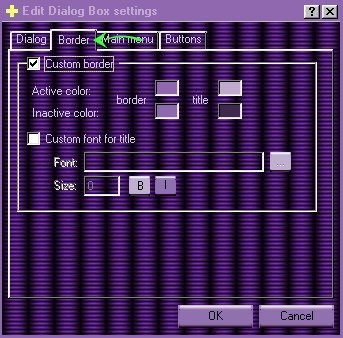 |
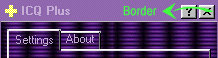
The Border: The border is the upper area of your ICQ and ICQ Plus console. In the image to the left it is the part above the tabs which reads Edit Dialog Box Settings. On ICQ it's self, it is the part that displays your number etc. The Active Color is the color the menu will appear when the selection is active or in use and the Inactive is the color it will appear when the program is up but dormant. To start select custom border: The color you choose for your tittle is the color your text will appear on your borders. You can also choose the type of font you want your heading to appear in, and the point size etc |
|
The Main Menu |
|
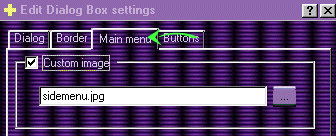
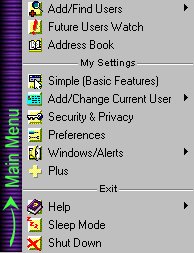
The Main Menu: Is where you will choose the image to be displayed on the small side menu on your ICQ. I have found that a good all around size for this image is 25 x 255 It is also a good idea to fill this image with your pattern, as I found that when the image was a small image, it did not fill the entire height of the menu. |
 |
|
The Buttons Menu |
|
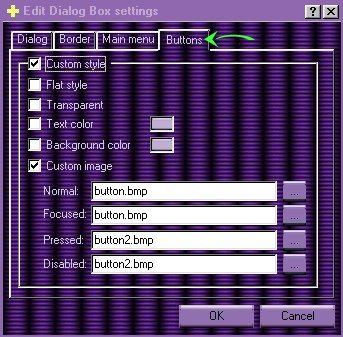
Note! If you chose custom and do not select a text color, the text on your buttons will remain a default black. Not selecting a Background color under this section means that your buttons will remain a default grey.. |
Buttons:
Here you will choose the look you want for your buttons.
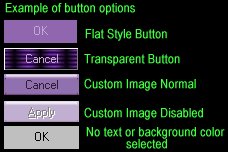
Again we will choose custom. To make my own custom buttons. I used Paint Shop Pro and a new image of 100 x 25. ICQ and ICQ Plus will shrink or expand as needed.The buttons you see on the menu on the left are all the same button size. The Transparent Option: Makes your buttons transparent which picks up the background image underneath. Below is an example of the different style options.
|
|
Other Dialogs |
|
| Now that you have customized all the options of your Main Dialog box. Apply them by selecting the Apply Button. You will now want to go back to your Dialog Box and this time choose Other Dialogs. Select the EDIT option as you did with the Main Dialog to begin customizing the other areas of ICQ and your ICQ Plus console. Remember that you will follow much the same procedure that you followed in customizing the Main Dialog. That is pretty much all there is to it. |  |
 
PREVIOUS
PAGE NEXT
PAGE
Any inquiries
or comments about this page can be sent to:E-Mail
|
|