|
|
. |

 he use of graphics on a Web page is important. They are used on
the Web because the web is a visual medium. Using of graphics like (banners, icons,
images, logos, etc,.) encourage the viewer to read the text information. When you use
graphics it important to consider the sizes and types of the graphics. It can be annoying
for visitors to wait too long to download a Web page that contains images that are big in file size. he use of graphics on a Web page is important. They are used on
the Web because the web is a visual medium. Using of graphics like (banners, icons,
images, logos, etc,.) encourage the viewer to read the text information. When you use
graphics it important to consider the sizes and types of the graphics. It can be annoying
for visitors to wait too long to download a Web page that contains images that are big in file size.
Quality and File Size
For example: GIF supports 8 bits or 256 colors,
JPEG supports 24 bits or true color, graphics.
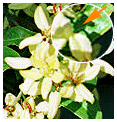
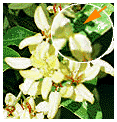
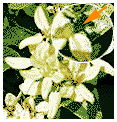
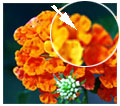
The thing is that the fewer the colors used in an image the more compact it gets. The quality of
the image goes down. You can see the quality of the image.
 |
 |
 |
| 256 colors 14kb |
64 colors 10kb |
8 colors 5kb |
 |
 |
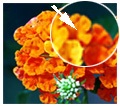 |
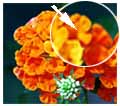
| maximum quality 20kb |
medium quality 20kb |
low quality 15kb |
Most Web designers prefer using GIF format for their graphics. GIF is best suited to purely 8 bits
graphic purposes (logos, images, lettering, banners, etc.). When they need to display pictures & images
& photo, they prefer JPEG. JPEG is best suited for quality pictures, high color. It is ideal way to display
larger images on a Web page.
Some Tips
Applying Text to Images
- Use a slim sans-serif font.
- Apply the text last, if possible.
- Don't resize or resample after adding text.
- Make sure that the anti-alias option is checked when you add your text.
- If your image has many colors try saving as a JPG & compare it to the same image saved as a GIF.
Create The Smallest Possible Graphics Files
- Minimize the initial number of colors.
- Use aliased sans-serif fonts like Geneva, Chicago. Anti-aliasing increases the number of colors.
- Use histogram influencing to optimize and minimize palettes.
- Reduce the resolution to 72 dpi as your last step.
- Group multiple graphics into one CLUT.
- Use multiple small graphics and/or backgrounds instead of one large graphic.
|

 Using Graphics