
| Downloads | MySS Info | ToolKit Info | Register | Home | Features |
There are seven screen tabs on the Setup Screen. These links will take you to each screen.
The bold tab name above each screen shot
links back to the links above.
Use the links under the bold tab name to go directly
to that area of help.
Or you can click on the control in the screen shot.
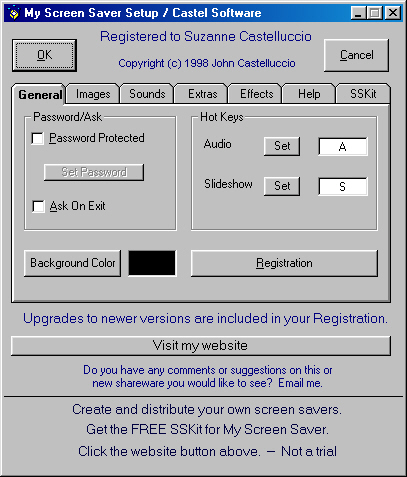
| OK Button | Cancel Button |
| Website | Password Protected |
| Set Password | Ask On Exit |
| Hot Keys | Set Audio |
| Set Slideshow | Background Color |
| Registration | Mode |
| Delay Exit | |
Go to Screen Shot
Password/Ask Frame
"Password Protected" if checked, allows you to set a screen saver password. See below.
"Set Password" is not available until you check the "Password Protected" box. Once you do that, you need to click on this button to actually set a password. Once you have a password set, this button will change to "Change Password". To change a password, you must first know the current password. If you clear the new password and confirmation password, leave them blank(not a space), the password will be unset.
If a password is set, when you exit My Screen Saver, you will be prompted for the password. If you do not enter the one that was previously set, the screen saver will remain active. If you do not want to exit the screen saver simply click the Cancel button. There are buttons that will display my e-mail address or web site. This is simply a display not a link. A link to my website is on the Setup screen. There is also a Slideshow/Menu button that will put you into slideshow mode. The Slideshow box does NOT have to be checked for the Password Slideshow/Menu button to work. Until you change them, slideshow will use the same parameters that you have selected in Setup. This form also shows to whom My Screen Saver is registered. The Password form will remain on the screen approximately 60 seconds. After that I assume you want to ignore this and it will disappear.
"Ask On Exit" if checked this will ask you before terminating the screen saver. Only if password protection above is unchecked. In the Screen Saver, clicking on NO will resume the screen saver. This helps when you bump your desk by accident. Clicking on Yes will terminate the Screen Saver. There are buttons that will display my e-mail address or web site. The web site button is a link. A link to my website is also on the Setup screen. There is also a Slideshow/Menu button that will put you into slideshow mode. The Slideshow box does NOT have to be checked for the Ask on Exit Slideshow/Menu button to work. Until you change them, slideshow will use the same parameters that you have selected in Setup. This form also shows to whom My Screen Saver is registered. The Ask On Exit form will remain on the screen approximately 60 seconds. After that I assume you want to ignore this and it will disappear.
Go to Screen Shot
These Hot Keys will not stop My Screen Saver, they will instead perform the action described here.
"Set Audio" set the Hot Key to adjust the volume while My Screen Saver is running. Default "A"
"Set Slideshow" set the Hot Key to toggle between Slideshow Mode and Screen Saver Mode. Default "S"
Buttons:
"Background Color" allows you to set the background color for My Screen Saver. You can choose any of the system colors or customize your own.
"Registration" If your version of My Screen Saver is earlier than 3.0 the registration button is not there and you need to download the newer version on my download page. To find out the version, click the About button on the setup screen. To register, simply go to my website, (see below) and follow the link on the Registration page. You can register by mail but it will take some time. To register on-line, you will need a major credit card. Simply complete the form and you will receive a code to enter into My Screen Saver. To do this, click the Registration button. Then enter the name that you used when you registered and the code you received. Click OK and that is it. No extra downloads. In the places where you saw the countdown of days of use left, you should now see your name. Note: you should check my website frequently, as I am not through with this program yet. I will be upgrading it and your registration does include the upgrades. Simply check your version against the one on the download page. If the version on the web page is higher, then you should download it. To keep your system clean, before you install it, you should use the Add/Remove option in your control panel to remove the older version. This will not affect your registration. It will remain intact. If you are happy with My Screen Saver, please tell your friends about it and give them my website URL, so they can download it.
Go to Screen Shot
Mode:
"Screen Saver" If this box is checked, when My Screen Saver is activated it will run a continuous display using your settings.
"Slideshow" If this box is checked, when My Screen Saver is activated it will be in slideshow mode. This sort of defeats the purpose of a screen saver as it will wait for you to display an image. In effect, this will give you a blank screen saver. In this mode, mouse activity will not exit the screen saver. With the exception of the Hot Keys, pressing any key will still exit the screen saver.
Go to Screen Shot
Slideshow mode is also available from the Password box, the Ask on Exit box, the system Tray Icon and as a Hot Key which you can set in the General tab of the Setup screen. The default is "S". This actually toggles between Slideshow mode and Screen Saver mode.
The Slideshow box does NOT have to be checked for the Password, Ask on Exit, Hot Key and system Tray Icon options to work. Until you change them, slideshow will use the same parameters that you have selected in Setup.
In slideshow mode, a left click on a blank area of the screen will display the next image. A left click on any picture will display the previous image. Clicking the right button will bring up a floating menu, with the following options:
The first six items change parameters that are selected in Setup and are linked to that area of this file.
"Next Picture" is the same as a left click on a blank area of the screen.
"Previous Picture" is the same as a left click on a picture.
"Change Sets" allows you to change the Image Set that My Screen Saver looks in for the image files.
"Screen Saver Mode" puts the screen saver back into that mode. You can switch back and forth as much as you like. You can also use the Hot Key you specify in the General Tab of the Setup Screen. Default is "S".
"Exit" will exit My Screen Saver, subject to the Password or Ask on Exit settings.
Go to Screen Shot
Overall:
"OK" will save your changes and exit the setup.
"Cancel" will discard your changes and exit setup. The "X" at the top right will also do this.
"Website" This button is a hyperlink to my website on the internet. If you are not on the internet, it should bring up your sign on screen. If it doesn't, then your PC settings need to be adjusted and that is beyond the scope of this help. If you are already signed onto the web, it will take you to my home page. From there you can check to see if you have the latest version of My Screen Saver. You can also check out the help pages. Eventually I will have a FAQ page, that you can check out. You can also see if I've managed to finish any new shareware.
"Start up Delay" There is a built in delay of approximately 20 seconds when the Screen Saver first starts and after the Password or Ask On Exit screens are canceled. During this 20 seconds, all mouse action and keyboard activity is ignored. This is to give you time to move your hand away from the mouse or keyboard.
Go to Screen Shot
| Downloads | MySS Info | ToolKit Info | Register | Home | Features |
Copyright 1999 John Castelluccio