
| Downloads | MySS Info | ToolKit Info | Register | Home | Features |
There are seven screen tabs on the Setup Screen. These links will take you to each screen.
The bold tab name above each screen shot
links back to the links above.
Use the links under the bold tab name to go directly
to that area of help.
Or you can click on the control in the screen shot.
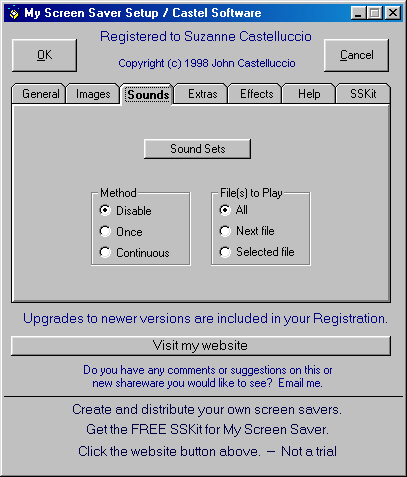
| Sound Sets | Method Frame |
| Disable | Once |
| Continuous | File(s) to Play Frame |
| All | Next File |
| Selected File | |
Go to Screen Shot
Change/Edit Sound Sets: will display another screen that will allow you to change both the Image and Sound Set My Screen Saver uses. Create and edit Sound Sets on this screen. This screen will also allow you to test the sound files. As you create Sound Sets, they will be available for use.
"Disable" Disables all sound.
"Once" Plays the sound file(s) selected in the "File(s) to Play Frame" one time.
"Continuous" Repeats the sound file(s) selected in the "File(s) to Play Frame".
"All" Plays all files in the box. Each time My Screen Saver runs it starts with the Next File in the list.
"Next File" Plays the next file in order. For example: The last time My Screen Saver ran, assume the first file in the box was played. This time it will play the second file. the next time it will play the third. When it reaches the last file, it will start over at the beginning.
"Selected File" Plays the file that is highlighted in the box.
Go to Screen Shot
Overall:
"OK" will save your changes and exit the setup.
"Cancel" will discard your changes and exit setup. The "X" at the top right will also do this.
"Website" This button is a hyperlink to my website on the internet. If you are not on the internet, it should bring up your sign on screen. If it doesn't, then your PC settings need to be adjusted and that is beyond the scope of this help. If you are already signed onto the web, it will take you to my home page. From there you can check to see if you have the latest version of My Screen Saver. You can also check out the help pages. Eventually I will have a FAQ page, that you can check out. You can also see if I've managed to finish any new shareware.
"Start up Delay" There is a built in delay of approximately 20 seconds when the Screen Saver first starts and after the Password or Ask On Exit screens are canceled. During this 20 seconds, all mouse action and keyboard activity is ignored. This is to give you time to move your hand away from the mouse or keyboard.
Go to Screen Shot
| Downloads | MySS Info | ToolKit Info | Register | Home | Features |
Copyright 1999 John Castelluccio