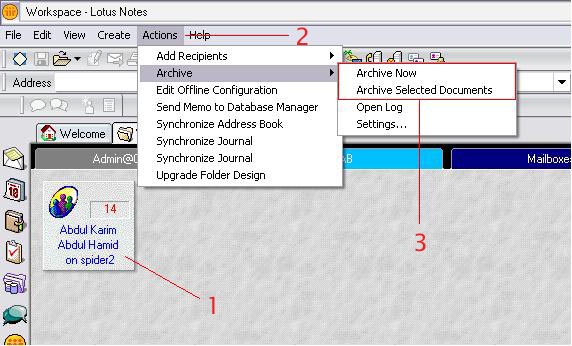
Archiving is method used in Lotus Notes / Domino to maintain a manageable mailbox size. This is to ensure that the quota is not exceeded (which will result in the inability to accept new, incoming mails) and to smoothen the access rate of the mailbox (a smaller mailbox will load faster than a larger one). Archiving is done by truncating e-mails from the mailbox to the user's PC. The diagram below illustrates the idea.
E-mails can be archived based on:-
1) Date (Mainly used with Actions - > the Archive - > Archive Now menu)
2) Selection (Mainly used with the Actions - > Archive - > Archive Selected
Documents menu)
| Diagram 1 |
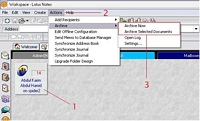 |
Archiving is conducted by:-
1) Select your mailbox icon. ( Your mailbox text will turn from black to blue ).
2) Select Actions from Menu Bar.
3) Select Archive, then select either Archive Now or Archive Selected Documents.
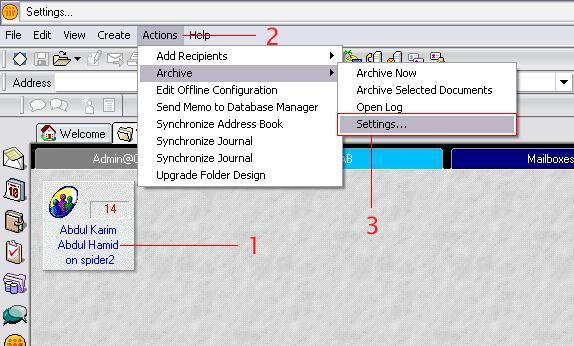
Before any archiving exercise could be carried out, users should set the archive setting. To access archive setting:-
| Diagram 2 |
 |
Method 1:-
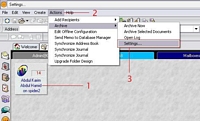
1) Select your mailbox icon. ( Your mailbox text will turn from black to blue ).
2) Select Actions from Menu Bar.
3) Select Archive, then select Settings.... A Dialog window will appear ( as shown on
Diagram 4 ).
| Diagram 3 |
 |
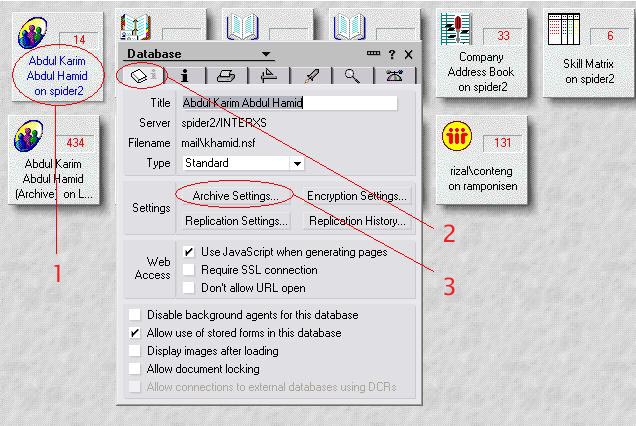
Method 2:-
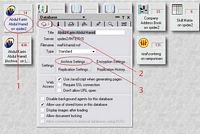
1) Select your mailbox icon. ( Your mailbox text will turn from black to blue ). Right
click on it. A menu will appear.
2) Select Database, then select Properties.
3) Click on Archive setting. A Dialog window will appear ( as shown on Diagram 4 ).
| Diagram 4 |
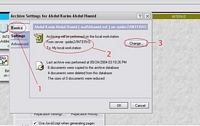 |
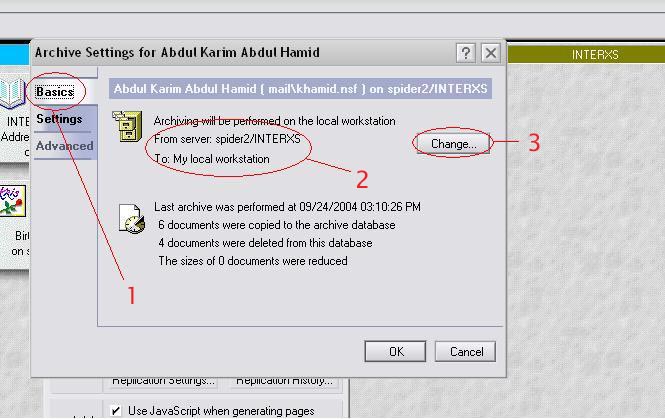
1) Make sure that you're on the Basics Tab.
2) Make sure that your mail server name is correct.
3) If you have a different mail server name, you can change it by clicking Change....
| Diagram 5 |
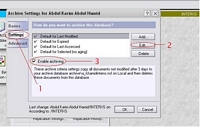 |
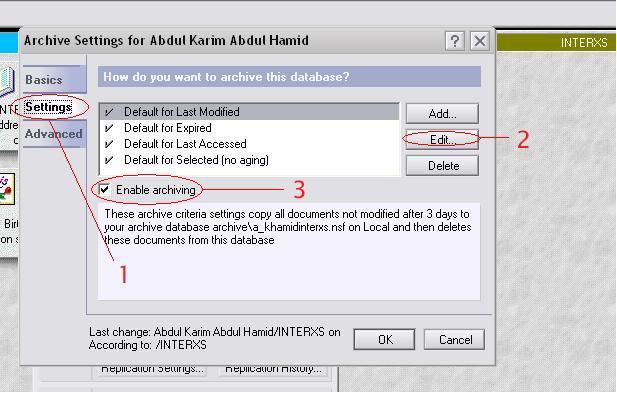
1) Make sure you're on the Settings Tab.
2) You can edit your archiving criteria by clicking Edit... ( Continues on with
Diagram 6 )
3) You can enable or disable archiving by ticking or un-ticking the Enable
archiving Options
| Diagram 6 |
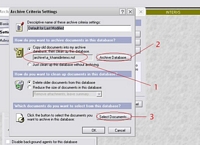 |
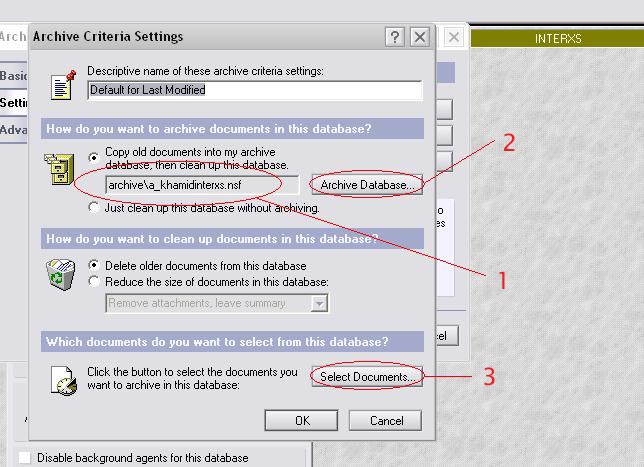
1) Make sure the path and your archive filename is correct. If this is your first time
archiving, make sure that that is the name you wish to name your archive.
2) You can change the path or the archive filename by clicking Archive Database....
3) You can change the parameters for your archiving by clicking Select
Documents.... ( Continues on with Diagram 7 ).
| Diagram 7 |
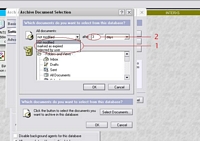 |
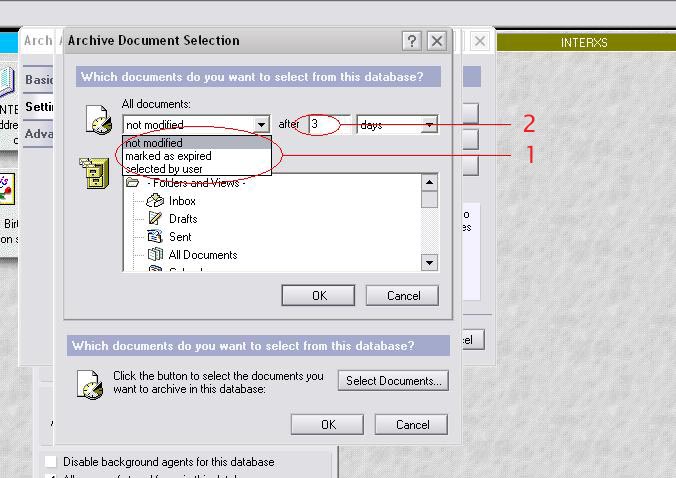
1) Specify which types of documents you wish to archive.
2) Specify the amount of days for the types of documents you wish to archive.
| Diagram 8 |
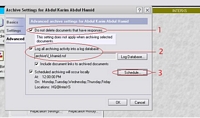 |
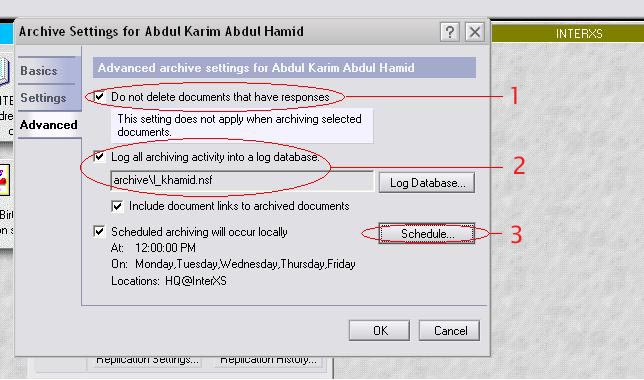
1) Enable this for e-mails that continuously forwarded and replied.
2) Enable this for easier troubleshooting ( to keep track which archiving was
successful and which was not )
3) To enable scheduling for mail archive, click Schedule.... ( Continues on with
Diagram 9 )
This is a new feature introduced in R6, which is best practiced when the mail is idle (e.g. when user goes out to lunch)
| Diagram 9 |
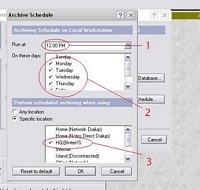 |
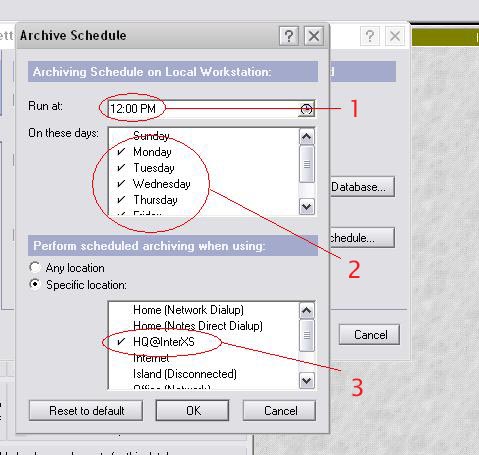
Please refer to Diagram 8 to learn how to access this Dialog Window.
1) Select the time you wish to run your mail archive.
2) Select the days you wish to conduct your archive.
3) Select the location you wish to archive. This a good option to avoid unnecessary
archiving for people using Lotus Notes on multiple domains/locations.
While Lotus Notes R6 is backward compatible with its predecessors (R5, R4, etc), there are some known issues regarding its mail archive.
Case 1:
Mail server is R6, which therefore has an R6 mail template. However, if the user (Lotus Notes Client) is still running on R5, and the user chooses to use the R6 mail template, the user is most likely to be unable to set his/her archive setting. This is due to the GUI of R6 mail template running on R5 client, which will not have the button to access the mail archive setting on an R5 client.
Solution 1:
User should revert back to using the R5 template.
|