


This is your final lesson - where everything can come together!
When you have finished this last lesson you are ready with the essentials to do graphics! Congratulations! So let's proceed...
Open a new image - 150 width by 150 height
As you learned in a previous lesson - take the eye dropper and choose a color from the colors on the right side of the screen. Then flood fill the image with that color. (All of this you already learned - if you forgot, go back to the previous lessons and you will remember what to do!)
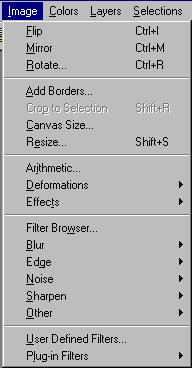
Choose image>effects>buttonize
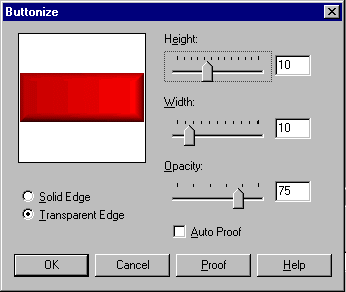
I use height 10 width 11 opacity 100 - but you can experiment and make the button to your own liking.
Make sure transparent edge is checked.
Hit ok.
Now you can click the text icon [A] - 3rd from bottom on left side of Paintshop Pro desktop and choose your text for the button.
If you remember tubes, you can go and choose a tube and insert on your button also. You can decorate your button or you can leave it plain. If you want a button that is flood filled - first flood fill the image before you buttonize it. As you recall, you have learned flood filling from a previous lesson.
Here is how you can flood fill text using tubes.
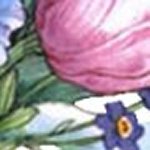
Remember this image? This is the floral pattern you used in the flood fill lesson. Now you will see how easy it is to flood fill using tubes.
Download this tube and use your winzip program as you did in the tube lesson and unzip it in your tubes folder you made on your desktop. Now drag the floral file to your Paint Shop Pro desktop. When it is open on your Paint Shop Pro Desktop go to File>Export>Picture Tube. When it asks for cells down put 1 and cells across put 1 and name your file with the name floral and hit ok.
The next part is easy. Open a new image 400 width 25 height and choose black as the background color. Then take your eyedropper over to the color palette and left click on white so that your foreground color will be white. You will see that your top box under the color palette is now white. Click on your text icon - which looks like the letter [A] on the left side of your Paint Shop Pro desktop - then click it over your image and your text entry box will open. Now type: Graphics is Really Fun! making sure you are using white for your text and that you have floating checked in the text entry box.
You will now have your text in white and it will be floating (it will look like ants moving around the letters). Click on your tube icon at the left side of your Paint Shop Pro desk top and then go to the top of your Paint Shop Pro desktop and hit control panel. Your tubes options box will open up. Find your floral tube and leave it at 100%. Then hit the x at the right top of the box to close it. Now go to your letters that are floating and left click your mouse and you will see your letters fill with the colors of the tube you picked! Now you will go to the left side of the Paint Shop Pro desktop and left click your magic wand and bring your magic wand to your floating text and right click it to stop the letters from floating. You now have flood filled your text with your tube! While the letters are still floating, you can also add additional text effects - such as drop shadow or cutout or chisel!
You can also use buttons to make awards, too! What you will need to do is open a new image and copy a graphic to it - or use your tubes and place a tube on it and buttonize it. Then you can use the methods of adding text - whether it be flood fill or using the text effects such as cut out, drop shadow or chisel effect. Start with a larger size button and text to work with. When you are finished resize it down. And you have a beautiful award!
ASSIGNMENT: Make a button that has the tube image on it and underneath the graphic have the word NEXT. Flood fill the word next with your floral pattern using the tube method.
Also make a floral button and add the word NEXT on the button using a text effect whether it be cutout, drop shadow or chisel.
The lessons should be done in this order:
 Introduction to Paint Shop Pro Classes
Backgrounds
Transparency
Flood Fill
Text Effects
Tubes
Snowglobe
Navigational Buttons