
Transparent gifs are those graphics that blend right into the background color of your web page so that instead of seeing the palette surrounding the graphic, you just see the graphic itself.
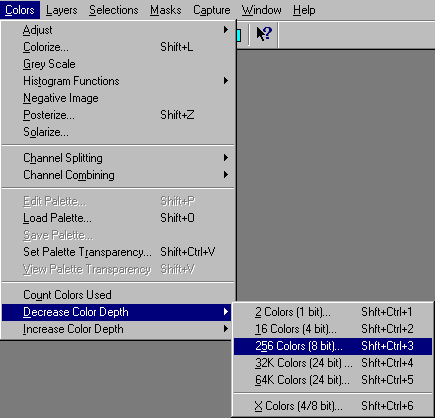
To begin with, the graphic must be 256 colors. If it is 16 million colors or a jpg you will need to reduce it to 256 colors. To do this you go to:
Colors
Choose Decrease Color Depth
Choose 256 colors
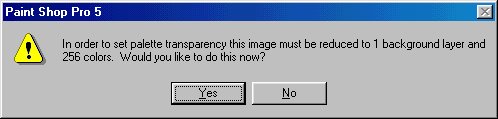
You will then be asked do you want to do this now. Hit yes.
A decrease color depth box will come up.
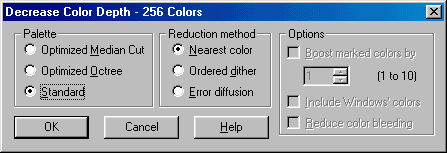
In this box you will be choosing the reduction method:
Choose Palette: standard and Reduction method: nearest color and then hit ok.
Then you hit colors
Set palette transparency - choose set palette transparency to the current background color. Hit ok.
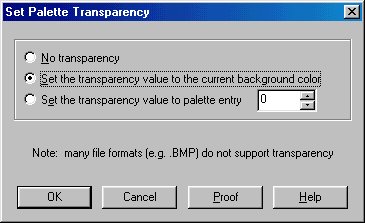
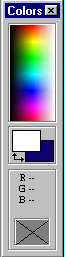
(You need to be sure that the bottom color box on the right is the same exact color as the actual background color of your image you are working with. This background color is the color surrounding your graphic. This background color surrounding your graphic also needs to be very close to the actual color of the background on your web page so that when you upload your finished graphic to your website, it blends in and there is no additional color showing up around your image.)
For self made graphics (ones you make yourself!) do not have the background color
surrounding your graphic contain the same color properties as the graphic itself otherwise
when you set the transparency, you will actually make the interior transparent too!
To see if this worked, go to color then view color transparency. You should then see the graphic with boxes behind it.
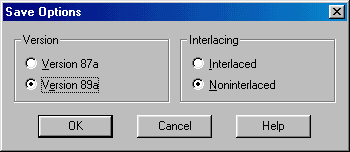
Save graphic as a .gif file checking to be sure that version 89a and noninterlaced are checked off. It usually is automatically set up to save that way but to be sure when saving click the option button and see that the version 89a and noninterlaced are checked off.
I found that some pre made graphics (ones you may download and want to make into transparent gifs) may not respond to the steps described above - too much of the color may bleed out - if that is the case then try choosing as reduction method: optimized medium cut or optimized octree still leaving the reduction method to nearest color. Most graphics will work the usual way but some can be harder to work with.
A point to remember when setting transparencies, be sure your background is close to the background of your web page for this to work! If it isn't, then when you upload it and view it you may see a halo surrounding it!
ASSIGNMENT: Find a jpg with a solid color background and save it. Then make this jpg into a transparent gif. Save both the original jpg and the new transparent gif. Be sure that the transparent gif is set to the nearest background color.
The lessons should be done in this order:
 Introduction to Paint Shop Pro Classes
Backgrounds
Transparency
Flood Fill
Text Effects
Tubes
Snowglobe
Navigational Buttons