
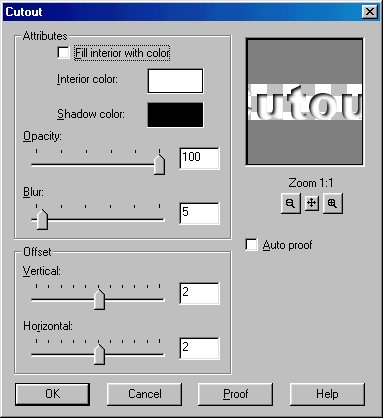
Go to your menu bar and select a New Image. Set the image to the width and height you will wish to use and make sure you have 16.7 million colors selected for image type and hit ok.
On your paint palette (the two color squares on the right side of your Paint Shop Pro desk top) set the foreground color - you remember - the top square - to white
Now left click your Text Tool  and left click over the center of your image.
Select the text of your choice. I used Arial Black. In Paint Shop Pro 6, be sure the floating and antialias is checked off. Now type is some text and leave the lines moving (like little ants moving around the text).
Go to the menu bar and select Image, Effects, Cutout and a dialog box will open. Here's what you will need to do:
Make sure the fill color is not checked off.
Set the Shadow Color to Black.
Set the Opacity to 100.
Set the Blur to 5.
Set the Vertical to 2.
Set the Horizontal to 2.
Deselect the text (right click it and the ants will stop moving). Save the image and you are done. If you want to make this image a transparent selection - as I did in a previous lesson, you can do that also. Remember you can adjust these settings to your own liking!
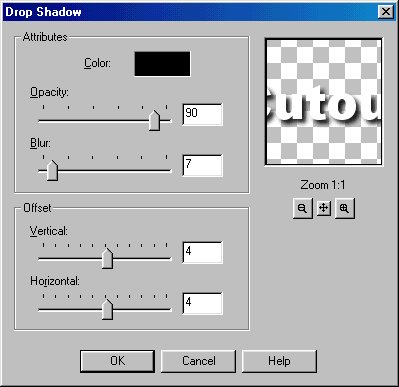
As we did before, go to Images, Effects and this time choose drop shadow. Here are the settings:
Set the Opacity to 90.
Set the Blur to 7.
Set the Vertical to 4.
Set the Horizontal to 4.

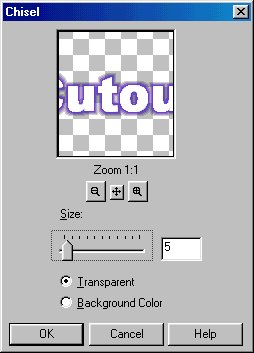
In the top two examples, when we made our text, we had both floating and antialias checked off. In this case,only check off floating. As we did before, go to Images, Effects and this time choose chisel. Here are the settings:
Choose transparent background.
Choose the size you want your text. I chose five below.

You will see when you try this, that your foreground color will actually be the text color and the color you have as your background actually becomes the chisel effect of your text. For a totally different look, instead of choosing transparent, try choosing background and see what the results are. So experiment to see what color you want to be your foreground and what color compliments it as your background and whether you prefer to choose transparent or background for your effect!
And these are some text effects you can try! Have fun with them.
ASSIGNMENT: Take the phrase, Graphics is fun! and make three graphics using the Cut Out, Drop Shadow and Chisel effect.
 Introduction to Paint Shop Pro Classes
Backgrounds
Transparency
Flood Fill
Text Effects
Tubes
Snowglobe
Navigational Buttons