Snowglobe Tutorial
Ready for a challenge - it really isn't hard - just take your time and have fun with it!
This is a simple tutorial using the globe and base already attached as one unit and saved as a tube.
To do this tutorial you will need to download the following:
Snowglobe Tube
Snowflakes Tube
And you should have Gorilla Tube from the tube lesson.
Note: When you unzip your snowglobe tube - you will see two different snowglobes - both round with different bases. When you export the snowglobes - you will fill in 2 cells across - because there are two graphics (two snowglobes) and you will put 1 in for cells going down since there is only one row of cells. Do not forget to name your file.
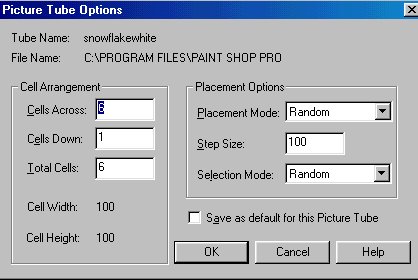
For your snowflakes - follow this guide below when filling in your cell information. This graphic will show you exactly how many cells to fill in going across and down.
Now open up a new transparent image approximately 300 wide and 300 long.
Retrieve your globe tube with attached base.
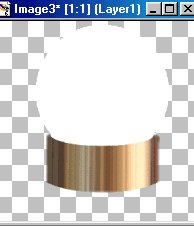
Remember when you saved this tube, you had two snowglobes with different bases. You will choose one of them for this lesson.
With magic wand, select the globe portion only (left click the wand at the globe portion). When selected it should look like ants moving around the globe. Flood fill the globe portion with any color you like - I chose green. Do this while the ants are still moving.
As you did in the tubes tutorial, you will now left click the tube icon and the control panel to retrieve your tube files.
Choose the tube you wish to place within the globe portion of your snowglobe and click inside the globe making sure those tiny ants are still moving around the globe portion only! Your tube graphic is now inside the globe portion and the ants should still be moving!
If your tube graphic is too big - just hit the undo key and scale it down and click it back inside the globe.
Now with your tube graphic (the gorilla) already within the globe portion of your snowglobe, copy the entire snowglobe 3 times with those ants still moving around the globe portion only. To do this:
Hit shift key and the d key and you will duplicate the globe. Do this three times - so you have three copies of your snowglobe. Those ants should still be moving around the globe portion only!
Now you will add snow to your snowglobe. You have the snow tube which was the one you downloaded at the start of this lesson. Go to your tube icon at your desk top and then to your control panel and find your snow tube. You will need to size your snow to work with your globe and graphic image inside your globe. Add your snow tube to the globe making sure that those ants are still moving around the globe portion. Do this to each globe individually. Do not do this to one globe and copy the snowglobe - it won't work that way.
Save each snowglobe individually as image1.psp, image2.psp and image3.psp.
Now go to run Animation Shop (found under file at top of Paint Shop Pro desktop)
At Animation Shop: Hit file then Animation Wizard
You will see a screen asking dimensions - leave as is and hit next
Next screen will ask for transparent or opaque animation - make sure transparent is chosen and hit next
Next screen is aspect ratio - make sure centered in frame is checked and with the canvas color is checked and hit next
Next screen is animation loop - check yes to repeat animation indefinitely and for frame display - type in 50 and hit next
Now for Images
Hit add image and find image 1 and double click
Hit add image again and find image 2 and double click
Hit add image one last time and find image 3 and double click and then hit next button and then hit finish button.
You will get a screen that looks like this:
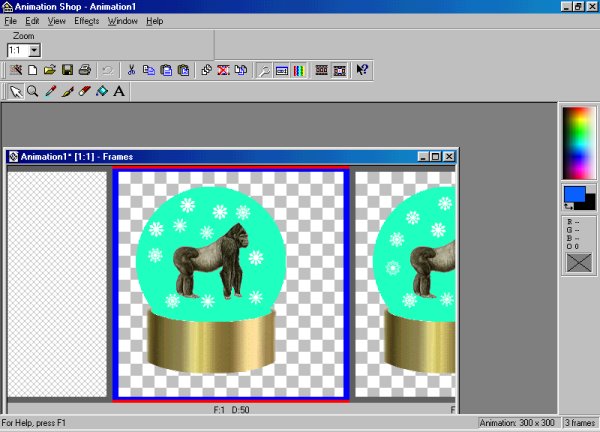
At top - 3rd icon from right is view animation button - click it to see what your snowglobe will look like when animated
Hit file and save and name your snowglobe. Be sure to save it as a gif file.
A screen will appear with image quality - hit next - do not change settings
Next is the optimization process which will complete the animation process - hit next
One last screen will show file information - then hit finish.
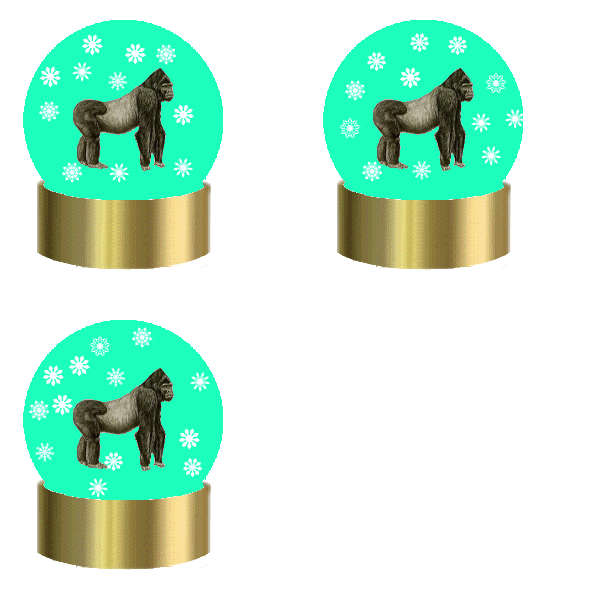
ASSIGNMENT: Make a Snowglobe! Find a tube from Not Totally Tubeless and download it. Make a snowglobe and insert the new tube within the globe and add snowflakes to the snowglobe
The lessons should be done in this order:
 Introduction to Paint Shop Pro Classes
Backgrounds
Transparency
Flood Fill
Text Effects
Tubes
Snowglobe
Navigational Buttons