

Welcome to Paint Shop Pro's basic introductory course. This course is aimed at getting you started using Paint Shop Pro. When you finsh this course, you will have the basic knowledge to start doing graphics. With this knowledge, you can then learn more skillful techniques. But the aim of this course is to give you the tools to start with!
Please refer to this page often to see the Paint Shop Pro desktop and the list of Paint Shop Pro tools.
One thing I need to mention too. Once you get the skills to do graphics - please only take free graphics from places that offer them and allow permission for you to take them and alter them. Many web sites will offer free graphics but will not allow you to change them in any way.
There is no race or rush. Take your time with each lesson and be sure to send the url of each of your assignments to
me (niknich)
I will review your assignments and get back to you. Wait to hear from me before proceeding to the next lesson.
Have fun and enjoy.
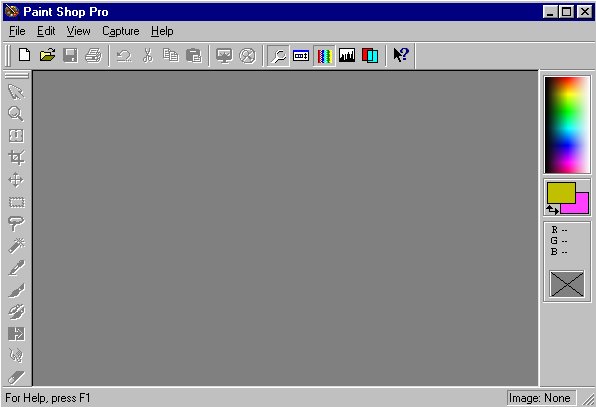
Paintshop Pro Desktop
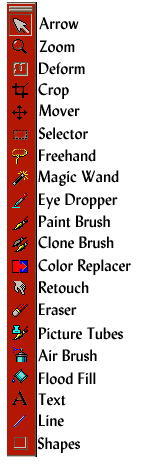
Paint Shop Pro Tool Bar


The following tool descriptions are just some tools available in Paint Shop Pro 5 and 6. The tools described below will be the tools that you will be using in these Paint Shop Pro Basic Lessons. After you have completed these basic lessons and go on to more advanced Paint Shop Pro applications, you will find that the other tools on your Paint Shop Pro desk top will be invaluable. But for now, let's just focus on the basics that will be employed in the lessons presented here.
ARROW TOOL
This tool enables you to quickly bring an image to the front. Simply click on the tool and click on the image you wish to bring to the front.
MAGIC WAND TOOL
This tool enables you to select an area of your image based on its color. This tool also works to select and deselect an image.
THE DROPPER TOOL
This tool which resembles an eyedropper enables you to pick colors from the current image. You can use this tool to select foreground and background colors.
THE PICTURE TUBE
This tool enables you to paint on an image using Tubes.
THE FLOOD FILL TOOL
This tool which resembles a paint bucket fills an image or a selected area of your image with either the current foreground or current background color. Left clicking fills with the foreground and right clicking fills with the background color. You can also choose an image or area to fill with a pattern.
THE TEXT TOOL
The text tool which resembles the letter A creates and enters text onto your images. The text can be in any font. Simply select the tool and click somewhere in your image to bring up the Text Dialog Box. You can select the size, font and several other options.
THE MOVER TOOL
The mover tool resembles two little crossed arrows. When left clicked and clicked on your graphic - it will allow you to replace the graphic to a different location.
The lessons should be done in this order:
 Introduction to Paint Shop Pro Classes
Backgrounds
Transparency
Flood Fill
Text Effects
Tubes
Snowglobe
Navigational Buttons